How to Plan Your Instagram Grid (and Actually Stick to a Schedule)
Most creators don't miss posting days because they run out of ideas. They run out of the twenty minutes it takes to edit, caption, and post at the right moment. Here's a system that removes that step.

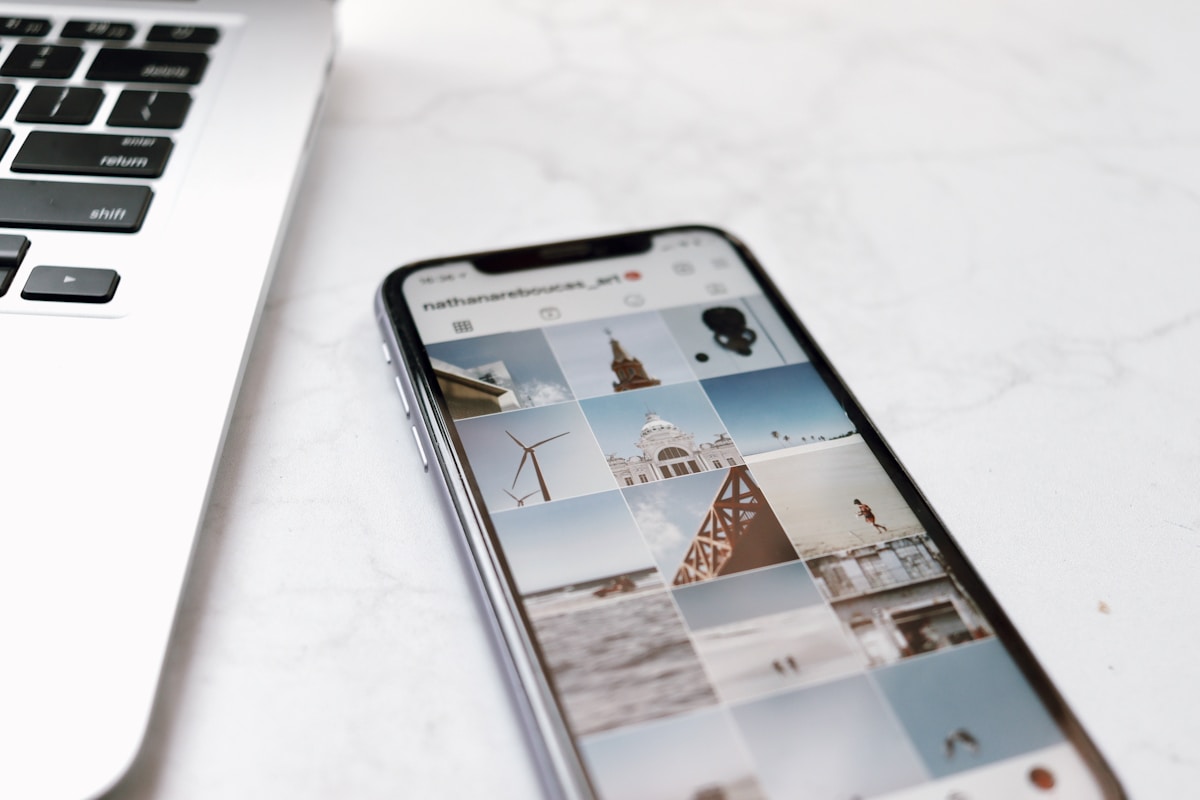
Consistency is the most repeated piece of Instagram advice and one of the hardest habits to maintain. The challenge isn't a lack of ideas. It's the fragile routine of editing, captioning, and posting from your phone at exactly the right moment. A content calendar separates making content from publishing it.
Batch the making, automate the posting
Creators who post consistently for years often set aside time to shoot and edit several posts at once, then schedule them over the following days or weeks. This turns "did I post today?" from a daily decision into a solved problem. The content is made, scheduled, and ready to publish.
Planning visually, not just chronologically
A grid is judged as a whole. Similar-toned photos next to each other or a jarring color break in a series only become visible when you can see the layout ahead of time. IG Suite's Plan page has a Grid view for this: upcoming posts appear as draggable tiles beside published content, just as they'll appear on your profile. Rearrange them before anything goes live, or use Queue view to see scheduled posts and times in chronological order.
Editing without leaving the composer
A photo that needs a crop or color fix shouldn't require switching apps mid-schedule. The built-in editor includes the aspect ratios Instagram uses for feed posts (1:1, 4:5, and 1.91:1), zoom, rotate, flip, sixteen one-tap filters, and ten adjustment sliders: brightness, contrast, warmth, saturation, tint, fade, highlights, shadows, vignette, and straighten. Edit everything in the same window where you schedule the post.
A simple weekly system
- Pick one batching session per week. An hour spent shooting and editing five posts beats five separate ten-minute scrambles.
- Upload everything into the Grid at once. Seeing them side by side before scheduling catches visual clashes early.
- Schedule around your best hours. If you know when your audience is most active, use that instead of guessing. See our guide to finding your best time to post.
- Leave one or two slots open. Timely content (a trend, a reaction, a launch) still needs room; a fully locked calendar a week out can't flex for it.
Carousels and Reels fit the same flow
The same composer handles single photos, Reels, and carousels of two to ten photos. Choose a format, upload, add a caption, and schedule it the same way, so your grid can mix formats without extra tools.
Getting started
Planning a week's worth of content in one sitting, instead of daily, is the single biggest lever for actually staying consistent. Start free and connect Instagram to try the Grid view, or read the full scheduling walkthrough.